
Support
Pairing the SavvyVan app
The app is a companion to your panel, not a replacement for it. Once paired, you can see battery and tank levels and work the switches from your phone - from the front seat, or from the other side of the world.
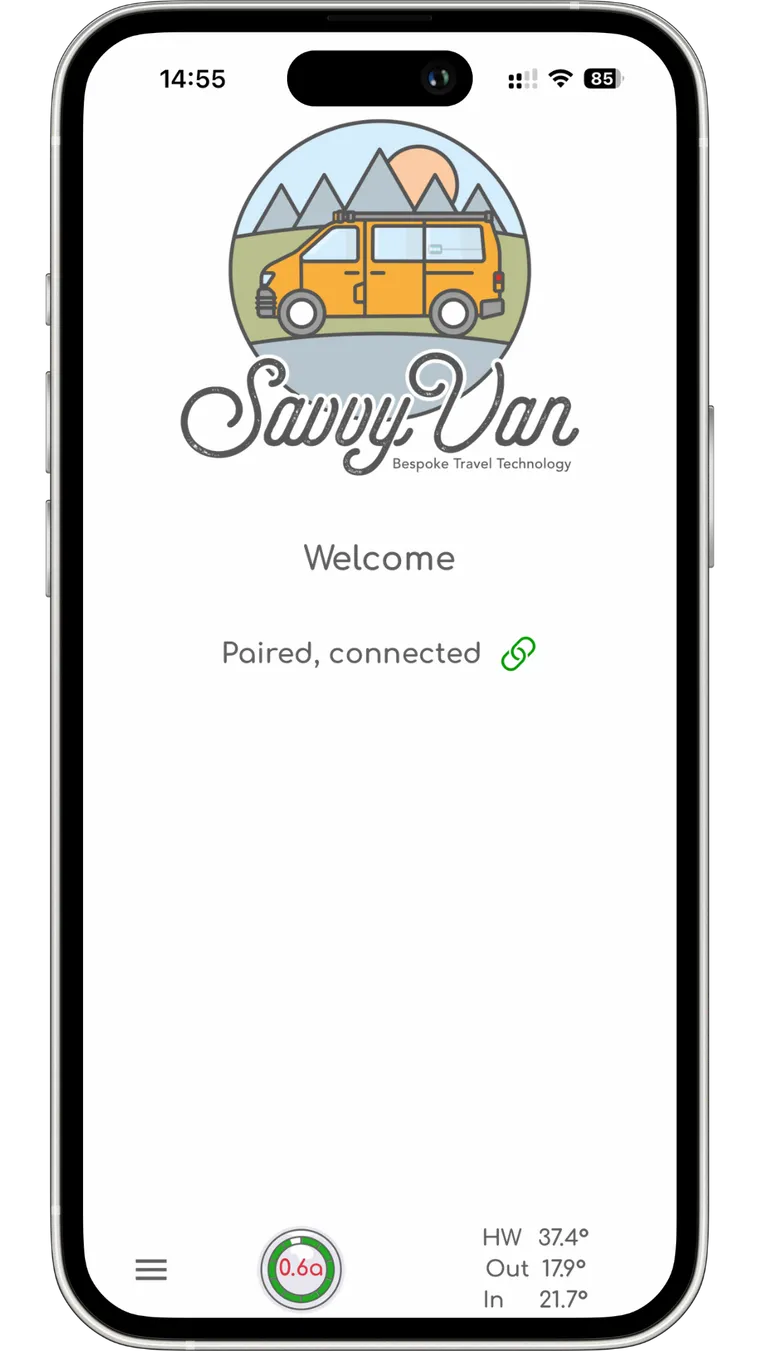
At a glance
- Android
- On Google Play
- iPhone
- On the App Store, for iOS 16.4 or later
- Connects
- Over the internet - it is not a Bluetooth app
- Your panel needs
- Software 2.4.0 or later, and an internet connection
- Pairing
- Scan the QR code on the panel from inside the SavvyVan app, not with your phone’s camera
- Shows
- Whatever your panel has - battery, tanks, switches, lights, levelling


Get the app
It is free to download, on either kind of phone:
- Android - SavvyVan on Google Play
- iPhone - SavvyVan on the App Store, for iOS 16.4 or later
Get the panel online
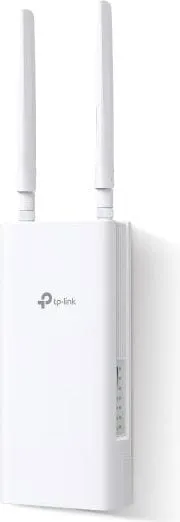
The SavvyVan app is not a Bluetooth app. It talks to your panel over the internet, so there is nothing to look for in your phone’s settings, and it works from anywhere with a signal. Your phone can use its mobile data or any WiFi.
That means the panel has to be connected - van WiFi, a 4G router, Starlink, whatever you have. WiFi setup is in the user guide.
Nothing on board yet? We sell a TP-Link 4G router for exactly this. It mounts on the outside of the van, where the signal is, and takes an ordinary data SIM, so the panel gets a connection of its own rather than borrowing your phone’s hotspot.
Update the panel
The app only works with panel software 2.4.0 or later. If your panel is running an earlier version, it needs updating before the app will work with it.
To check, open Settings → System Information - the Software version is listed there. If it is older than 2.4.0, tap Update Now on the same page, with a decent connection. The screen may be blank for a few minutes while it works.
Pair after updating, not before.
Find the QR code
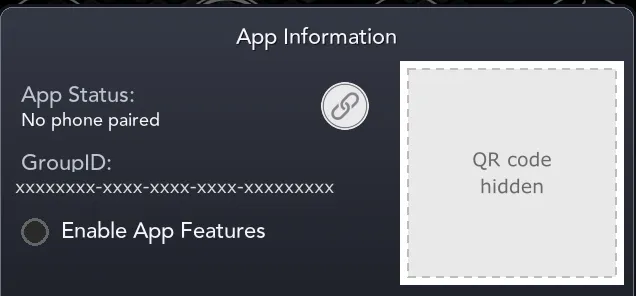
Tap the link icon in the top bar and the App Information popup opens with the pairing QR code, your app status and your GroupID. That is the quickest route, and the one to use day to day. You scan the code from inside the SavvyVan app - see Pair and scan.
Pairing for the first time? A panel that has never had the app switched on shows Turn on app features to pair your phone where the code should be, and its GroupID reads Created when app features are turned on. Tick Enable App Features in the same popup and the code appears straight away - the panel makes its pairing code at that moment. A panel that already had app features on keeps its code, and its phones stay paired.
Know what Reset Pairing does before you press it: it issues a brand new GroupID and unpairs every phone at once. Nobody keeps access - each phone has to scan the new code. The right button when you sell the van, the wrong one if you only want to remove a single handset.
To take just one phone off, unpair it from that phone instead: in the app, open Settings and then SavvyVan Unit.
The link icon, and what its colour means
With the tray icon switched on, the top bar carries a link icon showing where you stand at a glance. Tapping it opens the app information without leaving the screen you are on.
| Colour | What it means |
|---|---|
| Grey | Either app features are switched off, or no phone has paired yet |
| Orange | A phone is paired, but it is not connected at the moment |
| Green | Paired, and the phone is connected right now |
Grey or orange when you expected green? See troubleshooting, at the bottom of this guide.
What the popup shows
Tapping the link icon opens a panel with:
- App status - the same words the colour is standing in for.
- Your GroupID - the identifier that ties your phones to this panel. Treat it like a password: anyone with it and the QR code can pair to your van.
- The pairing QR code, so you can add another phone without digging through settings.
- Enable App Features - a tick box that turns the app features on and off. Unticked, the panel does not talk to the app at all, and the icon goes grey. Existing pairings are not deleted; tick it again and they come back. A new panel starts with it unticked.
Pair and scan
- Open the SavvyVan app and choose Pair Device from the menu.
- Allow the camera when it asks - that is how the app reads the code.
- Scan the QR code on the panel, with the app still open.
The app connects on its own from there.
Check it worked
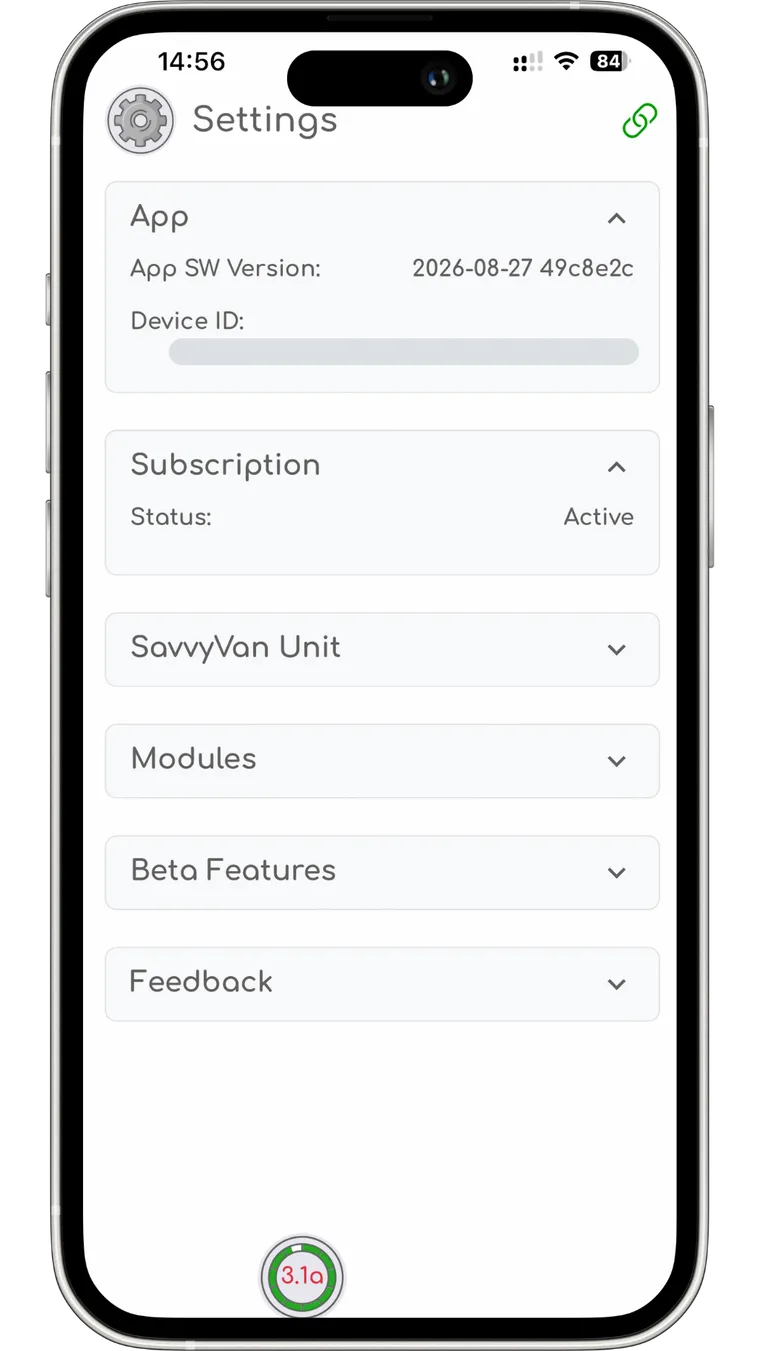
The app’s welcome screen reads Paired, connected, with a green link icon beside it. If it says that, you are paired.
What you can do from the app
You see whatever your panel has - the app mirrors your installation rather than offering things you have not fitted.
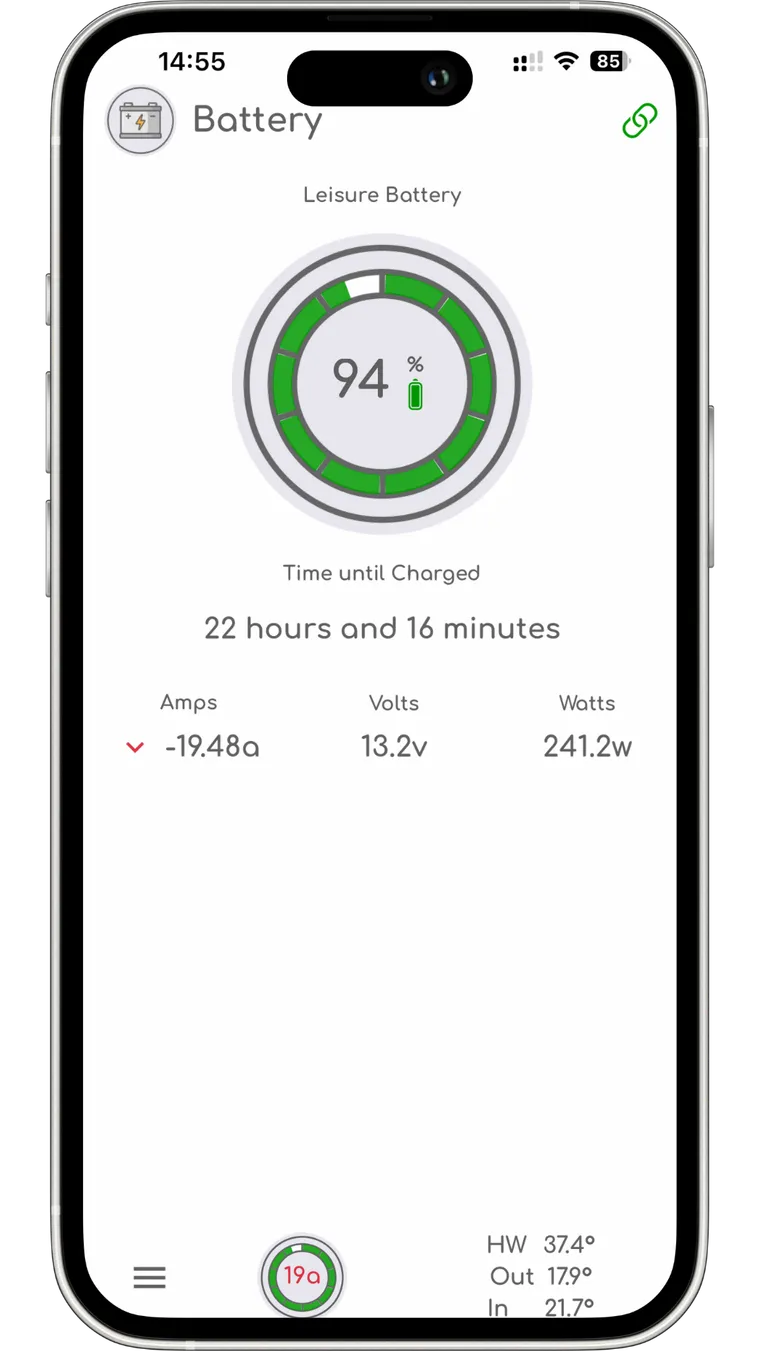
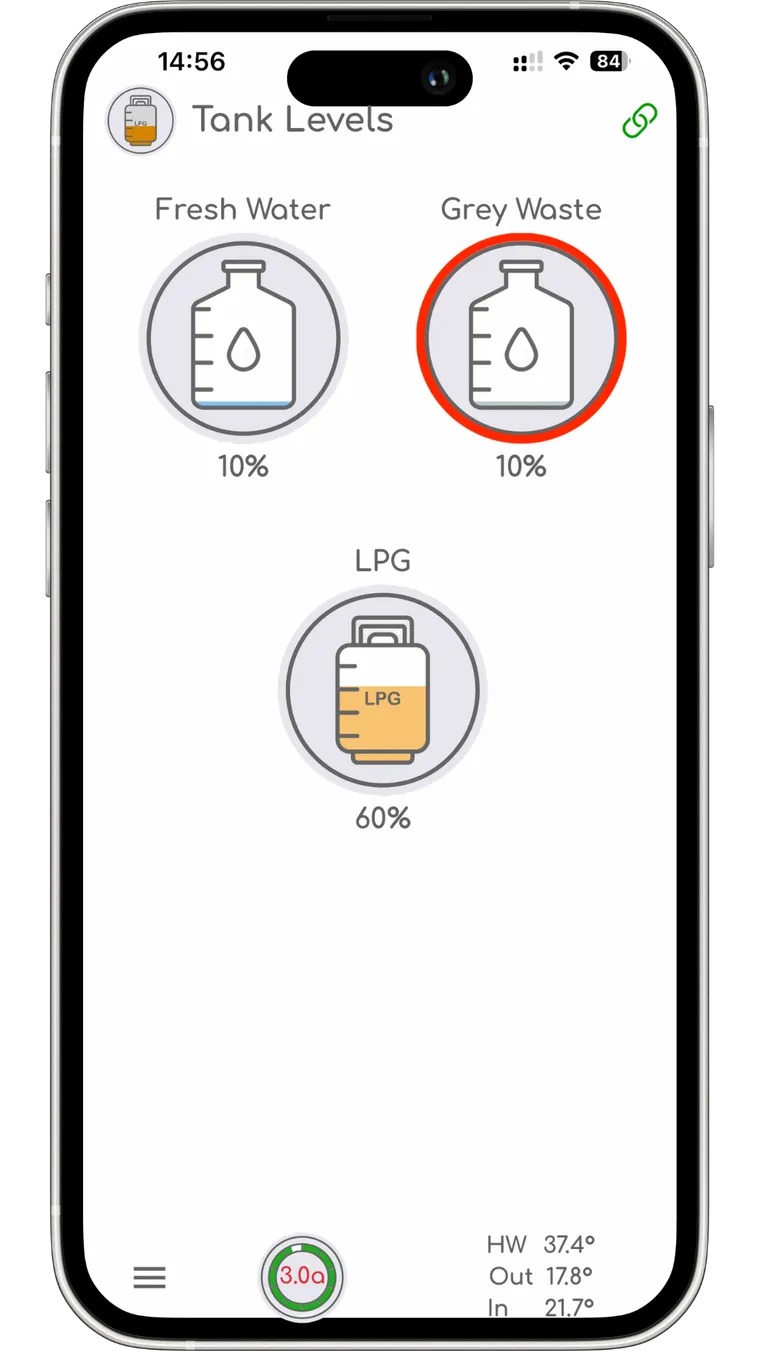
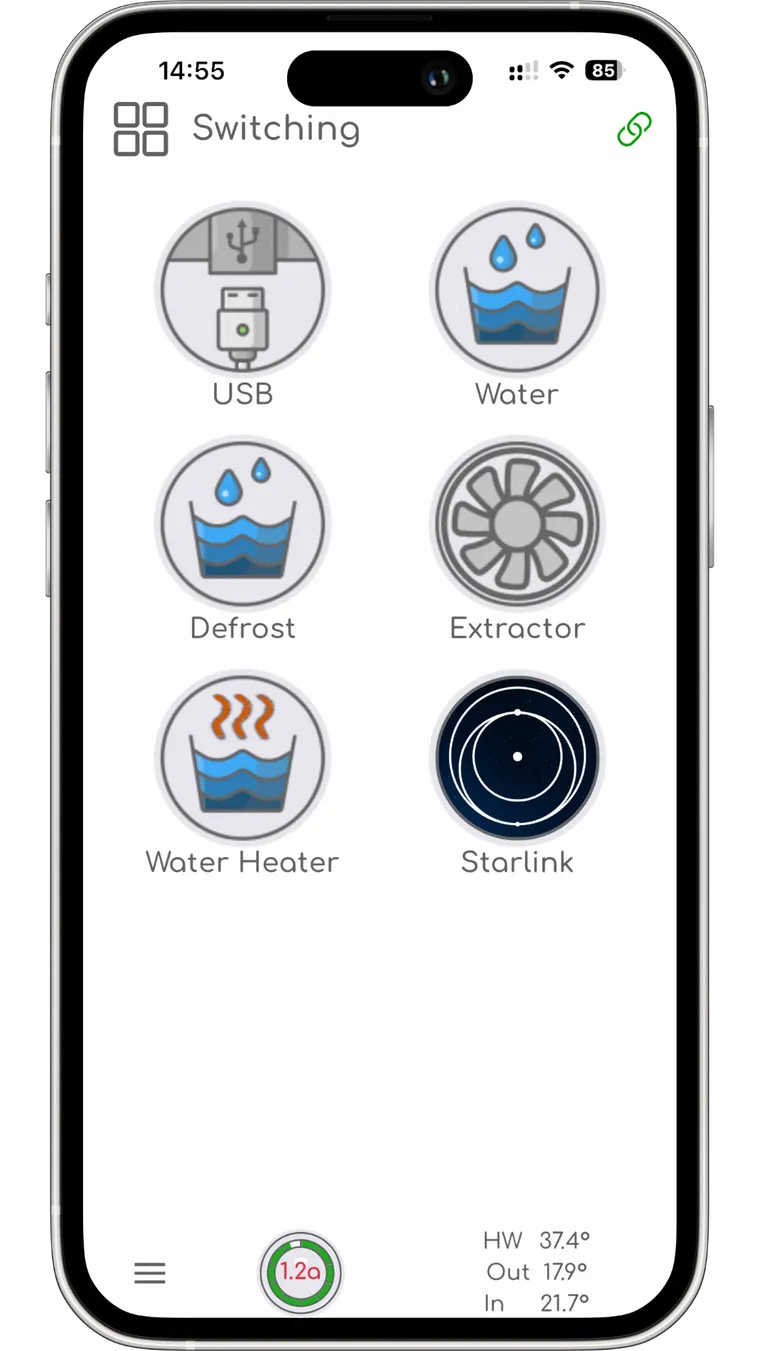
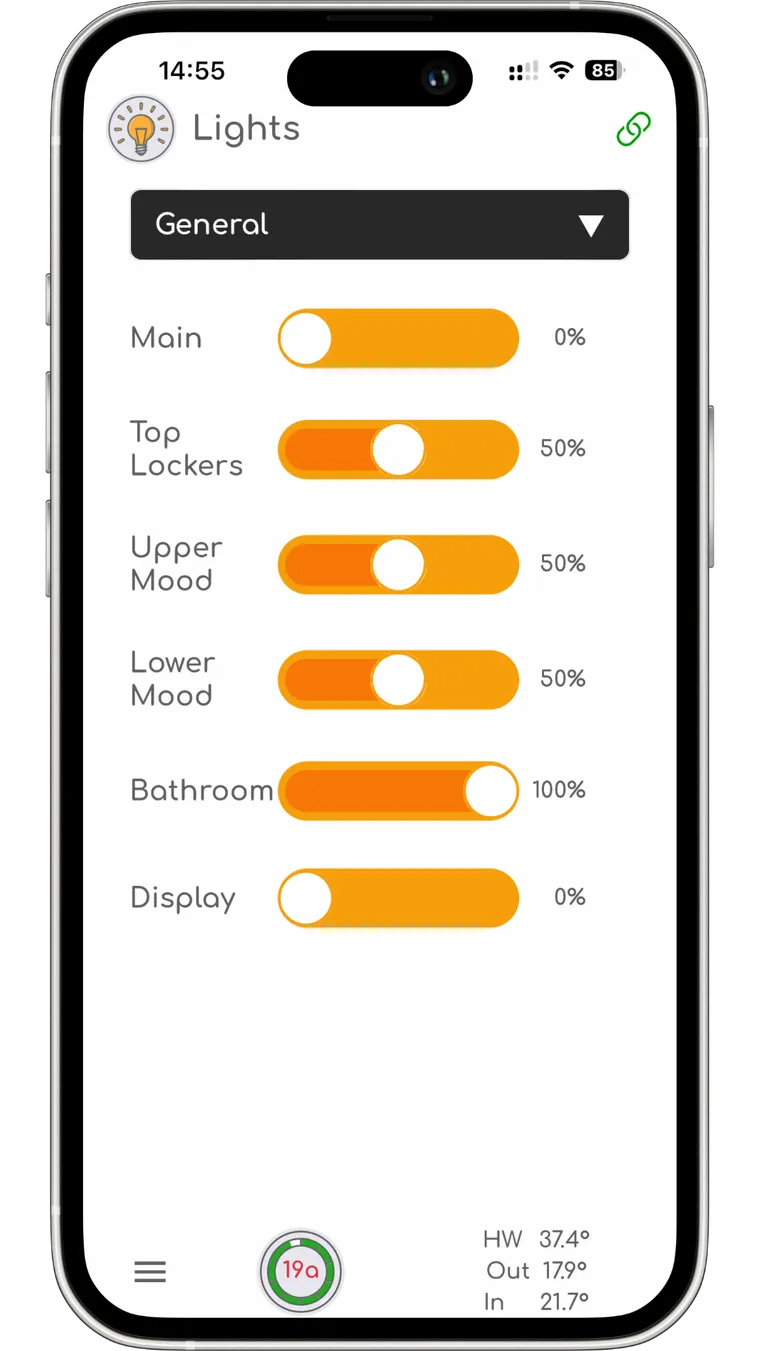
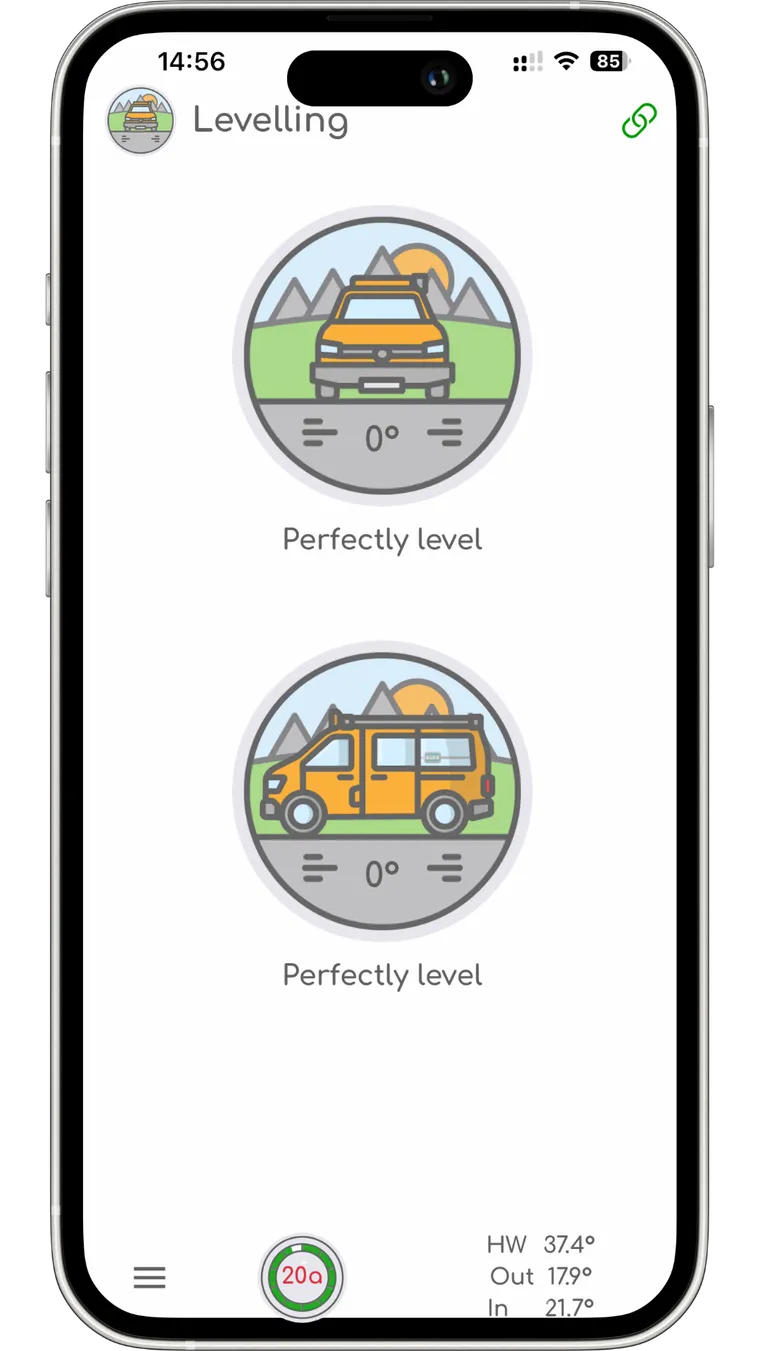
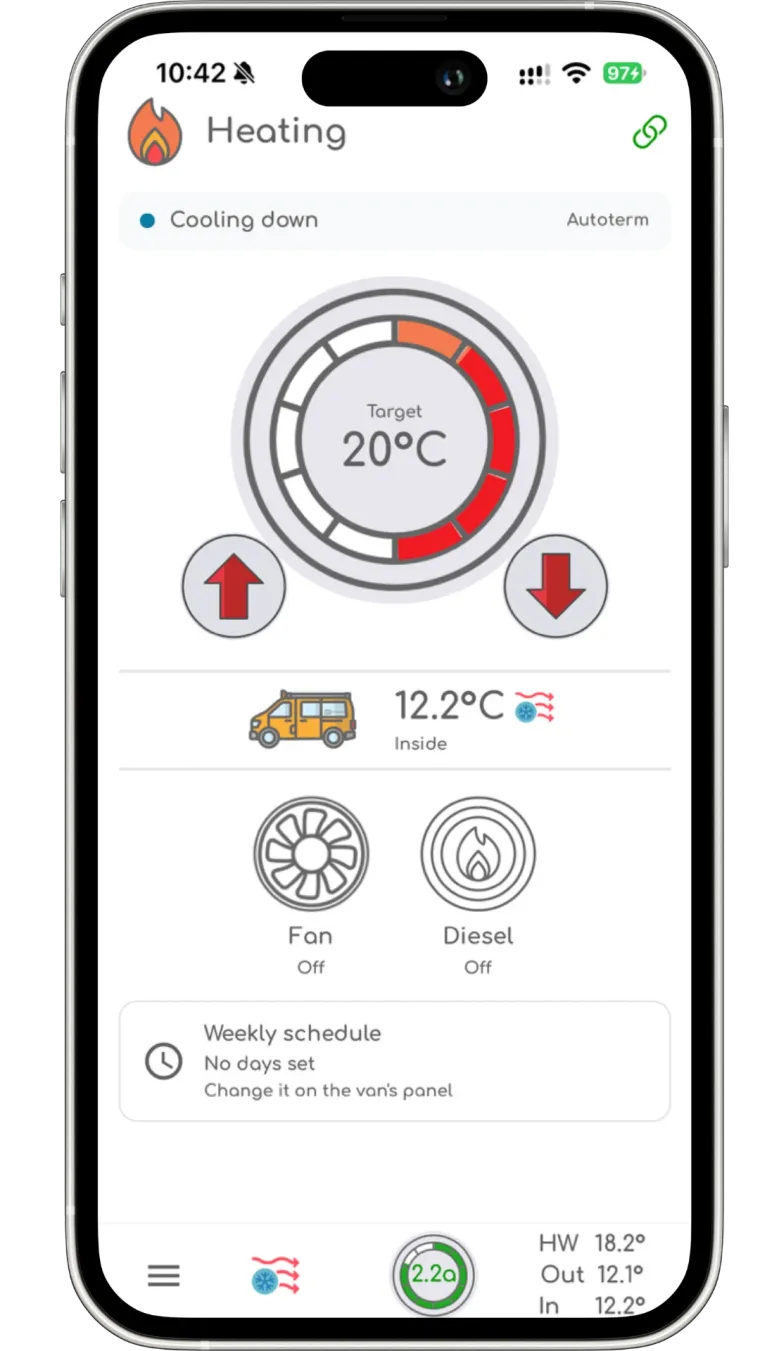
Everything stays in step with the panel, so the two never disagree about what is on.
Troubleshooting
App Settings is not in your settings menu? App Settings was introduced in software 2.4.0. Check the version under Settings - System Information and update the panel if it is older than 2.4.0. Pair after updating, not before.
App will not work with your panel at all? Check the panel’s software version under Settings → System Information. Anything before 2.4.0 needs updating first.
Scanned the code and nothing happened? It was almost certainly scanned with your phone’s camera app. Open the SavvyVan app, choose Pair Device and scan it from there.
Looking for the panel in your phone’s settings? You will not find it there. It is not a Bluetooth app - it reaches the panel over the internet, so pairing is only ever done by scanning the code in the app.
A grey link icon covers two different things. On a van that used to work, it usually means Enable App Features has been turned off rather than the pairing being lost.
Security
Pairing uses a QR code carrying a unique device key generated by the panel, which means only someone with physical access to the van can link a phone to it.
Traffic between app and panel is relayed securely, and operational system data is not stored along the way. A feedback report may include limited diagnostic information - that is how we find and fix things.
Questions people ask
- Is there an iPhone version?
- Yes. SavvyVan is on the App Store and needs iOS 16.4 or later. The Android version is on Google Play.
- I scanned the QR code with my phone’s camera and nothing happened.
- The code has to be scanned from inside the SavvyVan app. Open the app, choose Pair Device and point it at the code on the panel. Your phone’s own camera app can see the code but cannot pair with it.
- Which panel software does the app need?
- 2.4.0 or later - it will not work with anything earlier. The version is under Settings, then System Information. If yours is older, tap Update Now on the same page with the panel online, then pair.
- How does the app connect to the panel?
- Over the internet. It is not a Bluetooth app, so there is nothing to look for in your phone’s settings. The panel connects over WiFi, a 4G router or Starlink, and your phone uses its mobile data or any WiFi, which is why the app works from anywhere with a signal.
- Does the panel need internet, or just my phone?
- Both. The panel connects out over your van’s WiFi or a 4G router, which is what lets the app reach it from anywhere.
- Can someone else pair with my van?
- Only with physical access. Pairing needs the QR code shown on the panel itself, generated from a key unique to your device.
- I do not want it connected. Can I turn it off?
- Yes - the phone connection can be switched off entirely from the app page on the panel, which also saves a little power.