
Integration guide
Victron SmartSolar on the panel
From panel software 2.5.1, SavvyVan3 reads a Victron SmartSolar MPPT charge controller directly over wireless, so what your panels are making sits on the main screen with your battery. Nothing to wire - but it does need a key copying across from the Victron app, and nothing shows up until you have.
At a glance
- Works with
- Victron SmartSolar MPPT charge controllers
- Connects
- Directly over wireless - nothing to wire, nothing to buy
- Shows
- The watts coming in now, and the amp-hours made today
- You will need
- The instant readout encryption key, from the VictronConnect app
- Where it appears
- A solar dial on the main screen, under the battery - and a SOLAR card on the newer battery page
- Needs
- A SavvyVan3 panel on software 2.5.1 or later
What this gets you
A solar dial on the main screen, sitting in the left-hand column under your battery. At a glance: how much you are making right now, against the size of your array, and underneath it the amp-hours the panels have made today.
It is a dial to glance at rather than a button. If the van also has a SavvyShunt or a battery that reports itself, there is a battery page behind the battery dial - and on a panel that opens the newer battery page, as a new panel does from software 2.5.1, that page has a SOLAR card too, with the Victron logo: the VOLTAGE and CURRENT going into the battery, the AMPS CHARGED today, and the charger’s STATE - Bulk, Absorption, Float and so on. A panel updated from 2.4 keeps its classic battery page, which has no solar card, and so does a Teconnex battery, which has a page of its own.
Before you start
Two things:
- Update the panel to software 2.5.1 or later. Earlier software cannot find a SmartSolar. Instructions are in the SavvyVan3 user guide.
- Have your phone to hand, with the VictronConnect app on it and your charge controller already set up in it. If somebody else fitted your solar, you may need them to do this part - the key lives behind their app login if the device is protected.
Find the encryption key
This is the only fiddly bit, and it is fiddly once rather than every time.
Victron encrypts the broadcast so every phone on the campsite cannot read it. The panel needs the key, and the key lives in the app.
- Open VictronConnect and connect to your SmartSolar charger.
- Go to the settings cog, then Product info.
- Find the Instant readout setting and turn it on if it is not already. Victron’s app names the wireless standard alongside it; it is the only setting on that page called Instant readout.
- Under it, tap Show beside the encryption data, and copy the encryption key. It is 32 letters and numbers.
Email or message it to yourself, so you can read it off a screen while standing at the panel. It is long enough that copying it by eye is a good way to make one mistake and spend twenty minutes finding it.
Pairing it
- On the panel, open Installer Settings, enter the passcode, and go to the device pairing screen - the one with Scan on the right.
- Tap Scan. Your charger appears under its name, which starts SmartSolar. The panel only lists names that begin that way, so if yours has been renamed in VictronConnect, put SmartSolar back at the start of its name.
- Tap the green + beside it.
- Type the encryption key when the panel asks for it - Enter SmartSolar key (32 hex). Spaces are ignored. If a character is missing or wrong, the panel says so before it saves - Need 32 hex chars or Use hex only (0-9, a-f).
- Tap the home button. The solar dial appears on the main screen as soon as the panel reads the charger’s first broadcast.
Reading the dial
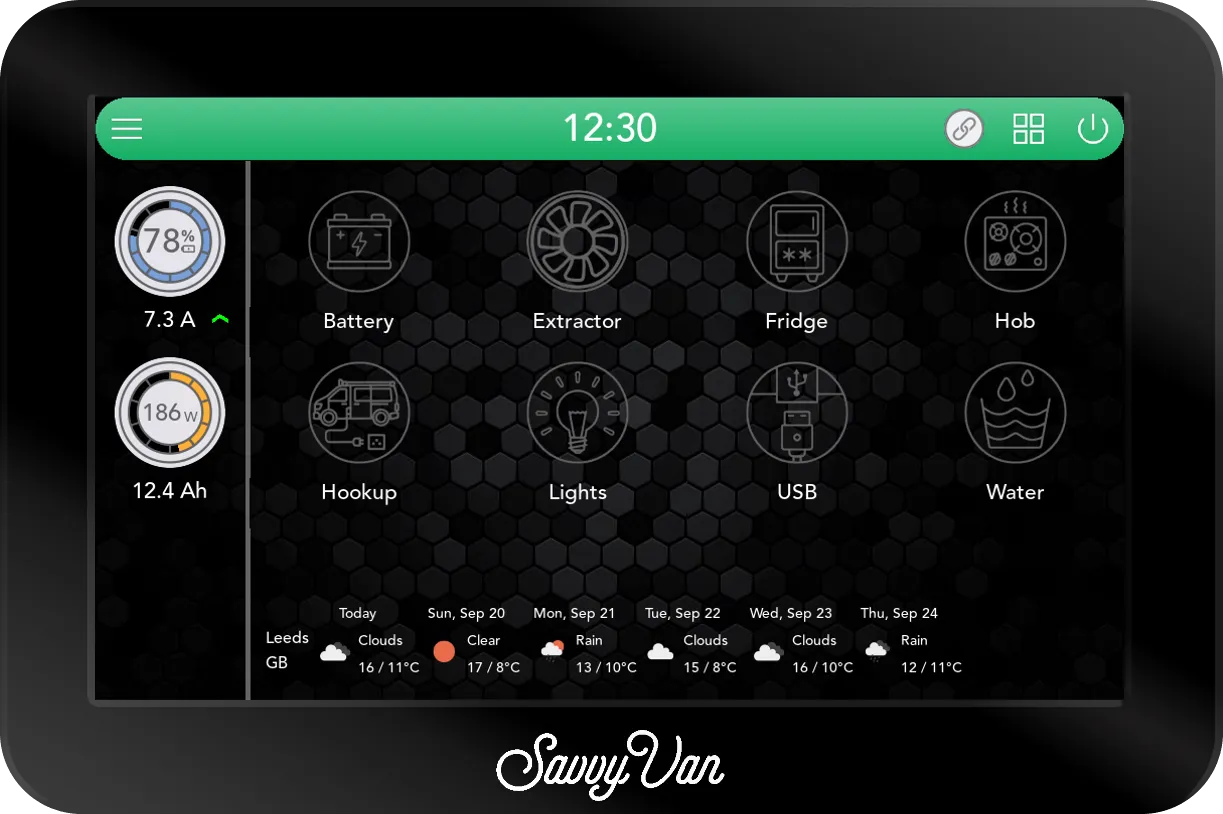
The dial fills against the size of your array, so it is a glance rather than a number to interpret. The panel assumes 400W to start with - set your real figure in Installer Settings → Battery Settings → Solar Charger → Max Solar Watts (50W to 2000W, in steps of 50), or the dial means little. A 200W array against a 400W dial looks like a bad day when it is a fine one.
The same Solar Charger section shows the charger’s name, whether it is Connected or Offline, Re-enter Key if the key ever needs changing, and Show on pages - untick it to take the solar dial, and the solar card on the battery page, off the screen without unpairing anything.
If the panel hears nothing from the charger for a minute - at night, or with instant readout switched off - the dial shows it as offline, and it comes back with the next broadcast.
Using it with a water heater
With a water heater on the panel, solar starts paying for itself twice. Charge overflow heats water when the battery is above 95% - exactly the surplus a sunny afternoon throws away. It needs to know that percentage, which the SmartSolar does not report, so it also needs a SavvyShunt or a battery that reports itself. The water heater guide covers the setup.
Troubleshooting
In the order worth trying:
- Check the software version. Before 2.5.1 the panel cannot see a SmartSolar at all.
- Check the key. One wrong character and the panel receives the broadcast and cannot read a word of it - which looks identical to receiving nothing. Re-enter Key, under Solar Charger in Battery Settings, and re-copy it rather than re-typing it. Type it there without spaces - unlike the first time, that box does not ignore them, and if it does not like the key it simply opens again. Solar key updated. means it took.
- Check instant readout is still on in VictronConnect under Product info.
- Check the name still begins SmartSolar.
- Get closer. The broadcast is low-power. Pair from inside the van rather than from the far side of it.
Still nothing? Tell us what you are seeing, including your charge controller’s model number, and send us the logs from the passcode screen - Get Help, then Send Logs.
Questions people ask
- Do I have to wire anything?
- No. The charge controller broadcasts its readings over wireless, and the panel listens. Nothing is cut, nothing is connected, and your solar carries on working exactly as it did.
- Why does it need a key?
- Victron encrypts the broadcast so that only someone you have given the key to can read it. That is a good thing - it just means there is a step where you copy it across from the app.
- Will the panel change my charger's settings?
- No. This is read-only. The panel shows you what the charger is doing and never tells it what to do, so your charging profile stays exactly as you or your installer set it.
- Does it still work if my phone is away from the van?
- Yes. Once the key is in, the panel is the thing listening - your phone is only needed for the setup.
- Can I have a SmartSolar and a Clayton Power LPS2?
- Not both on the panel. An LPS2 reports its own solar, so the panel will not pair a SmartSolar alongside it, and it says which one to remove.