
Setup guide
A second screen, wherever you want it
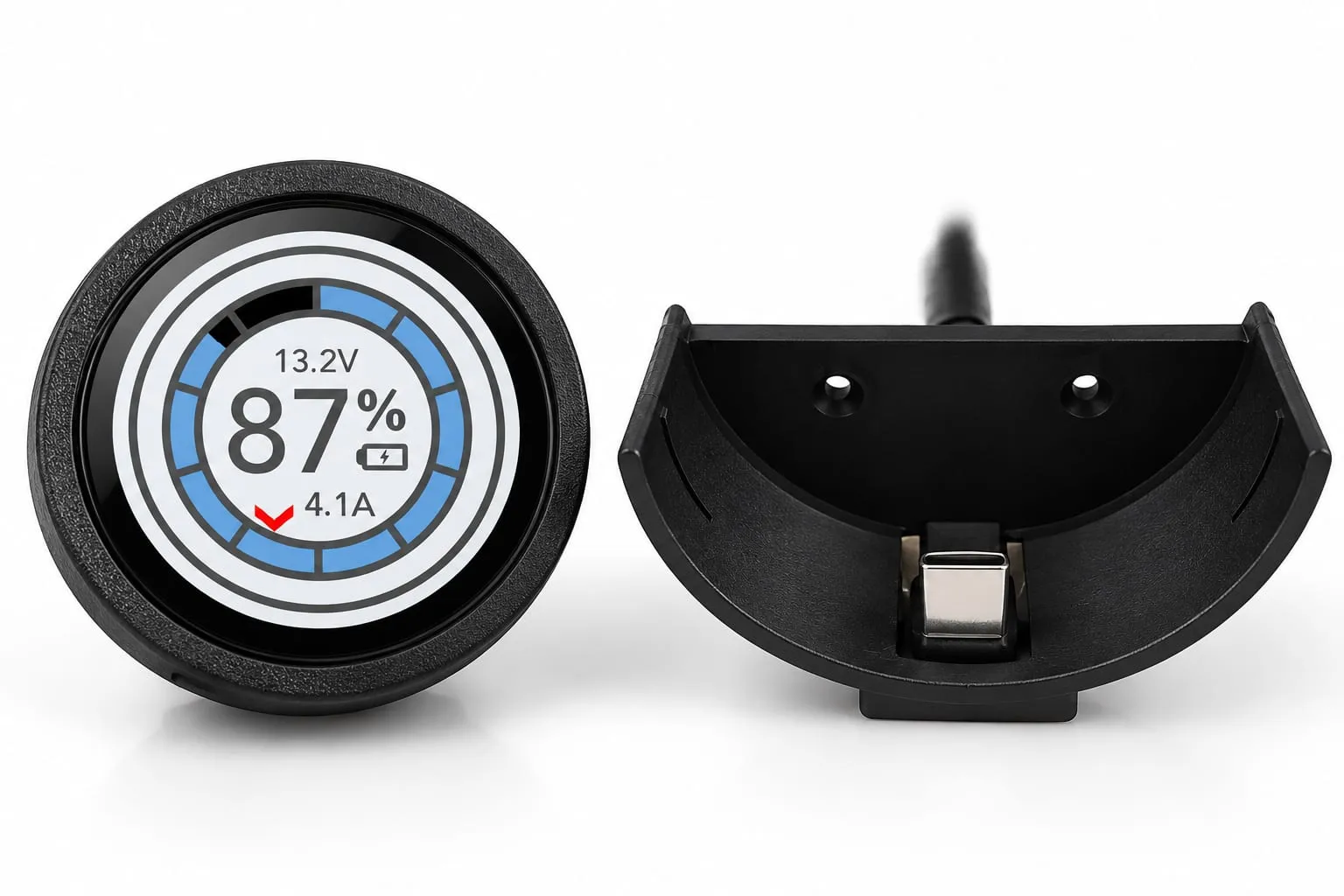
The SavvyDot is a small round touch screen that brings up to five things from your SavvyVan3 panel to wherever you want them - by the bed, the door or the galley - and switches them with a tap. It runs on USB-C, fixed in place or portable, on a charging plate you lift it off. It needs panel software 2.5.1 or later.
At a glance
- What it is
- A 1.28-inch round touch screen that mirrors your panel
- Shows
- Up to five things - tiles, tanks, lights and scenes, the heater, the battery, levelling
- Power
- USB-C, 70 mA at most
- Two versions
- Fixed, on a USB-C feed, or Portable, on a charging plate it lifts off
- Off the plate
- Up to 6 hours, depending on brightness and screen timeout
- Pairs as
- SavvyDot- and four characters
- Needs
- A SavvyVan3 panel on software 2.5.1 or later, and the installer passcode to set up
What it does
A SavvyDot shows up to five things from your panel, one at a time on its round screen, and you swipe between them:
- A tile - any of the panel’s eight circuits, shown by the tile’s icon. Tap to switch it.
- A tank - fresh, grey, black or gas, with SavvyTanks, or the fresh water tank on a Sargent, CBE or BCA version of the panel that reads the van’s own sender. (The list calls black water Waste and gas LPG.) Tap to switch the tank’s relay, where it has one.
- A light or a scene - with SavvyLights, with its name on the dot so two lights can be told apart. Tap a light to step it up a quarter at a time - 25%, 50%, 75%, full - and once more for off; tap a scene to put it on, and again to turn the lights off.
- The heater - with the Propex or Autoterm module, one slot for each heat source: Heater: Gas and Heater: Electric on a gas-and-electric Propex, Heater: Gas on a gas-only one, Heater: Electric on the electric-only Propex, and Heater: Diesel on an Autoterm. Each shows the set temperature and the temperature inside, with arrows to change it and a tap to switch that heat source on or off. Like the panel, it runs one source at a time.
- The battery - its charge, from a SavvyShunt or a battery that reports itself.
- Levelling, with SavvyStance, and a voltage: the panel’s own reading, on a van with no shunt or battery that reports itself, or the second voltage input, if your van uses one.
Everything goes through the panel, so a tap on the dot does exactly what the same tap on the panel would, and the two stay in step whichever you use.
The two versions
Fixed. Bolted on from the back and fed by USB-C. It stays where it is fitted and is always powered, so it never needs charging.

Portable. It sits on a charging plate, which is screwed into position and is both the dot’s mount and its charger. Lift the dot off to carry it round the van, and put it back to charge. Off the plate it runs for up to six hours, depending on how bright the screen is and how soon it goes dark.
Either way it runs on USB-C and draws 70 mA at most.
Fitting it
The fixed version is bolted on from the back. The bolt on the back of the dot goes through whatever you fit it to and is tightened from behind, and its USB-C lead leaves from the back too. So choose a spot you can reach behind - the side of a cupboard, say - and bring the USB-C feed to it there.
The portable version’s charging plate is screwed into position, through the two holes in the plate, wherever you want the dot to live. Run its USB-C feed to the plate, and the dot lifts on and off it from then on.
Pairing it
Pairing is installer work, behind the installer passcode. It needs the panel on software 2.5.1 or later - earlier software cannot find a SavvyDot.
- Power the dot. A dot that has never been set up says where to go: Installer Settings, then the pairing page, and the name to look for.
- On the panel, open Installer Settings, enter the passcode, and go to the device pairing screen - the one with Scan on the right.
- Tap Scan and look for
SavvyDot-and four characters, such asSavvyDot-1a2b- the same name the dot shows. A dot from before the name changed shows asSVMiniScreen. Tap the green + beside it.
Choosing what it shows
- In Installer Settings, tap Next, then Dot Configuration - on the second screen, after the Back arrow and Motor Driver. (The cog beside the dot on the pairing page opens the same page.)
- SavvyDot Settings has a tab for each dot paired. Pick your dot.
- Tap Choose on the empty slot - or Change on a filled one - and pick what it shows. The next empty slot appears under it, up to five. Only what your van actually has is offered, and anything already in another slot is greyed out. The bin icon empties a slot, and the ones below move up.
- Press Deploy. The panel sends the slots to the dot - Deploying… with a percentage - and says Deployed when it is done.
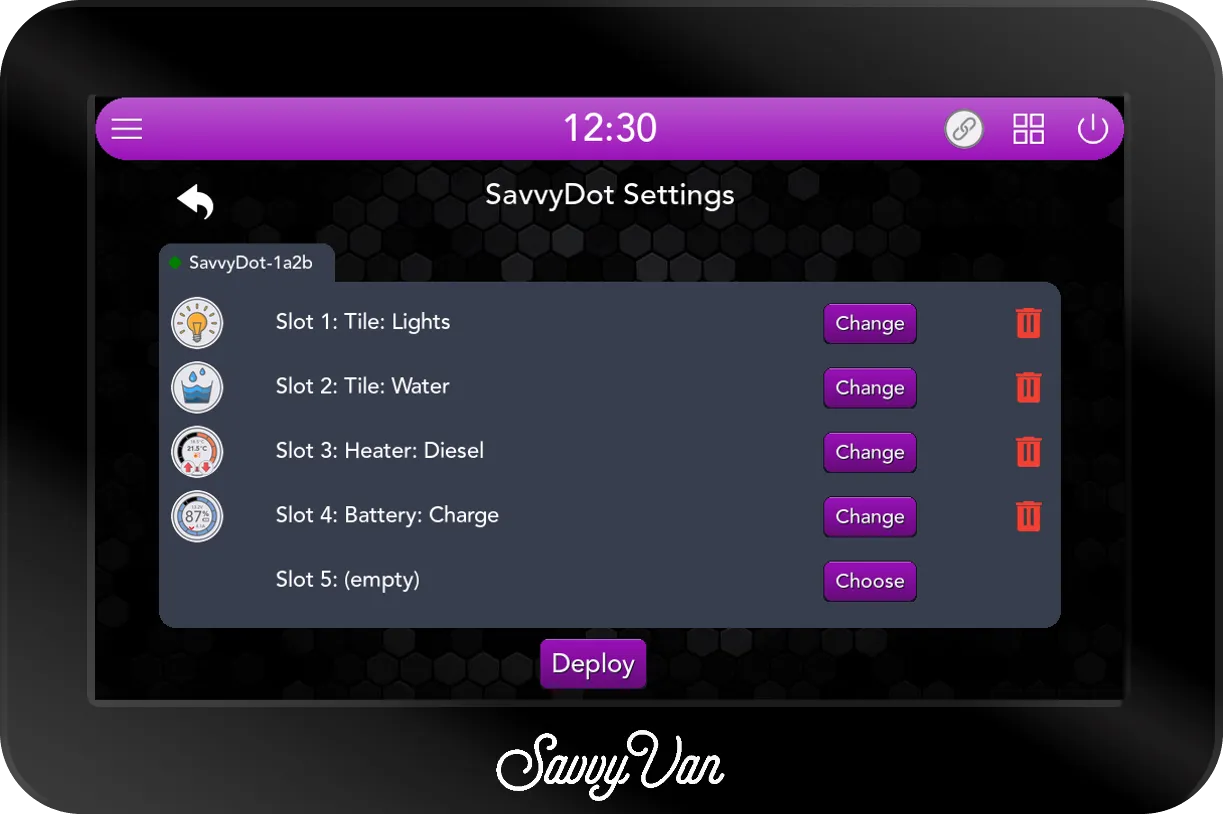
A new dot updates itself on its first Deploy. When the panel carries newer software for the dot, Deploy brings it up to date first - Updating SavvyDot firmware…, then Restarting SavvyDot… - which takes about five minutes, with an Updating ring on the dot. It finishes on Firmware updated to the new version and deployed. If the update cannot finish, the dot keeps its old software and the rest still deploys, but a heater slot stays blank until the dot is updated. The panel says so in red - Deployed - SavvyDot firmware not updated - so press Deploy again to retry.
Rename a light or a scene and the dot shows the new name after the next Deploy. A tile’s slot shows the tile’s icon rather than its name.
Using it
- Swipe left or right to move between slots. Dots at the bottom show which one you are on.
- Tap to switch what the slot shows. The dot changes straight away, and goes back if the panel does not confirm it.
- On a heater slot, the arrows at the bottom raise or lower the set temperature by half a degree, from 10°C to 30°C, and a tap anywhere else switches that heat source on or off. It never runs the fan on its own. If the heater reports a fault, the dot wakes on that slot with ERROR and the fault’s code, and asks you to check the main screen: deal with it there, and the dot goes back to normal by itself.
- Swipe up for the dot’s own settings: Timeout (Never, 30s, 1 min or 5 min), Brightness (25% to 100%), Scroll (move to the next slot every 15 seconds), Connection, Restart, Version and ID. Reset clears its slots - tap it twice to be sure.
- Swipe down for Standby, where the power button turns the screen off while the dot stays connected. A touch wakes it.
If the dot loses touch with the panel, it keeps showing the last figures and its connection dot turns red - the panel has the current readings. A battery slot shows OFL once the panel has heard nothing from the battery for a minute, and a heater slot shows OFL while the panel cannot reach the heater. A tank slot keeps its last level, so if a level looks stuck, check the panel.
What it does not do
- Work on its own. Everything goes through the panel.
- Hold a momentary tile. A tap switches a tile on or off, so an awning motor or an electric step stays on until the next tap. Keep those on the panel.
- Run the heater’s fan, or show solar.
- Run a Kartt diesel heater. The heater slot is for the Propex and Autoterm modules, so a Kartt is run from the panel.
- Show a Clayton Power LPS2’s battery. The battery slot needs a SavvyShunt or one of the batteries that connect directly, so a van whose battery is an LPS2 has no battery slot.
- Show levelling live all the time. A levelling slot updates while the Levelling page is open on the panel.
- Light up a scene’s button on the panel. Put a scene on from the dot and the Lights page does not highlight it.
Troubleshooting
- No
SavvyDot-name when you scan? Check the panel is on software 2.5.1 or later, then check the dot has power and is close to the panel. - The Settings page says No SavvyDot paired. Pair it first, on the pairing page.
- Deploy says the screen is offline. (Screen is offline - cannot deploy.) The dot is out of range or has no power. Bring it closer, or put it on its plate, and try again.
- Deploy stops part way. (Deploy failed - screen not reachable.) The dot dropped out while it was being sent its slots. Bring it closer, or put it on its plate, and press Deploy again.
- A slot you want is not in the list. Only what the van has is offered: a tank needs SavvyTanks (or the van’s own sender, on a Sargent, CBE or BCA version), a light SavvyLights, the heater a Propex or Autoterm module, and the battery a SavvyShunt or a battery that reports itself.
- The dot has gone dark. Touch it - the screen may have timed out - or, on the portable version, put it back on its plate to charge.
Still stuck? Tell us what you are seeing, and send us the logs from the panel’s passcode screen - Get Help, then Send Logs.
Warranty
The SavvyDot carries our 12-month warranty. The free second year you get for registering is for the SavvyVan3 panel only.
Questions people ask
- Can I have a small second screen by the bed?
- Yes - that is what the SavvyDot is for. Fix one beside the bed on its USB-C feed, or keep the portable one on its charging plate there, and have it show the things you reach for at night: the lights, a tile, the heating or the battery, up to five of them.
- Does the SavvyDot work on its own?
- No. It is a second screen for your SavvyVan3 panel: everything it shows and everything it switches goes through the panel, so it needs the panel running and within wireless range.
- How long does the SavvyDot's battery last off its plate?
- Up to six hours, depending on how bright the screen is and how soon it goes dark. A new dot comes set to stay on at full brightness, so on the portable version swipe up and choose a Timeout - and a lower Brightness makes it last longer still. Put it back on the plate to charge. The dot does not show its own charge, so a spell on the plate each day is the easy habit.
- Can I set it up myself?
- Pairing it and choosing what it shows both need the installer passcode. Once it is set up, using it needs nothing - swipe and tap.
- Can it run an awning or a step that only works while held?
- Not yet. A tap on the dot switches a tile on or off rather than holding it, so a momentary circuit would stay on until the next tap. Keep those on the panel itself.
- How many SavvyDots can one panel have?
- More than one - the setup page has a tab for each dot paired, and each shows its own five slots.