
Support
Starlink on the panel
If you travel with a Starlink dish, the panel can show you what it is doing - whether it is connected, how long it has been up, whether anything is in the way, and how much data you have got through. No extra hardware, and nothing to pay for.
At a glance
- Works with
- A Starlink dish on the same network as the panel
- Costs
- Nothing - it is built into the panel
- Shows
- State, uptime, obstructions, alerts, throughput and data used
- Turn it on
- Installer Settings → Additional Settings
- Where it lives
- The side menu, top left, once enabled
- Read only
- The panel never changes a Starlink setting
What this gets you
Starlink’s own app tells you all this, but it is on a phone, and the phone is usually somewhere else. This puts it on the wall of the van, next to everything else you check.
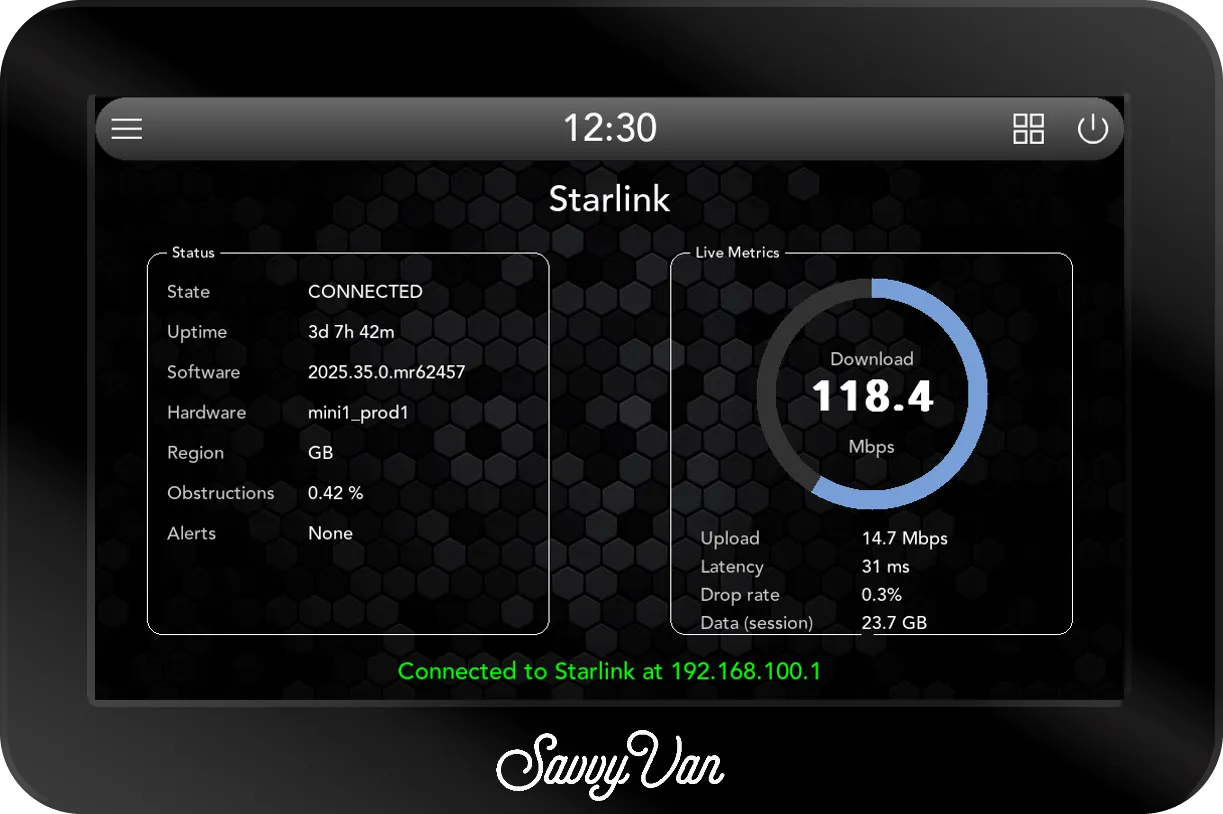
Two boxes on one page.
Status, on the left:
- State - CONNECTED when all is well. Otherwise the dish’s own reason it is not, such as BOOTING or OBSTRUCTED.
- Uptime - how long the dish has been up, in days, hours and minutes. A number that keeps resetting is a power or a mounting problem rather than a signal one.
- Software and Hardware - the dish’s own versions, and the first two things anybody asks when you report a fault.
- Region - the country the dish thinks it is in, which is worth a look if you have crossed a border.
- Obstructions - how much of the dish’s view of the sky is blocked, as a percentage. The closer to 0.00 % the better.
- Alerts - None, or whatever the dish is complaining about.
Live Metrics, on the right:
- Download - the dial, in megabits a second: how fast data is coming in right now. It measures what is being used, not what is possible, so a quiet van reads low.
- Upload - the same, going out.
- Latency - how long a message takes to reach Starlink’s network and come back, in milliseconds. Lower is better; it is what makes a video call feel sluggish.
- Drop rate - the share of those messages that never come back. It should sit at or near 0%.
- Data (session) - a running total of what has gone through the dish in both directions. It starts again when the dish restarts, and it is not your monthly allowance - that is only in the Starlink app.
Along the bottom, green text says the panel is connected to the dish. Red text
reading Starlink router not reachable means it cannot find it, and every
value above shows -- - see If nothing shows up.
Getting the panel on the network
The panel talks to the dish over your own network, so it needs to be on it. Ordinary WiFi setup - tap the menu top-left, choose WiFi, Scan, and join the Starlink router like any other network. Full steps are in the SavvyVan3 user guide.
This also gives the panel its clock, its weather and its updates, so on the road a Starlink connection tends to solve several things at once.
Turning the page on
Starlink is switched off until you ask for it, so a van without a dish is not carrying a menu entry that leads nowhere.
- Tap the menu top-left, then Installer Settings, and enter the passcode.
- Open Additional Settings.
- Enable Starlink Menu.
A Starlink entry now appears in the side menu, top left, under Notifications and WiFi.
Reading it
Nothing to configure and nothing to calibrate - it reads and displays.
A few things that catch people out:
- Booting takes a couple of minutes after power-up, and the state will say so. It is not stuck.
- A brief obstruction is normal while you are parked under anything at all. It is a repeated one that costs you a connection.
- Uptime resetting on its own points at the dish losing power rather than losing signal - worth checking the supply before blaming the sky.
What it does not do
The panel never changes anything. It reads the dish’s status and shows it. Your plan, your settings, stowing and unstowing, and everything else stays in the Starlink app where it belongs.
That is deliberate. A panel that could quietly change your internet setup would be a support problem, and a screen that tells you the truth is more useful anyway.
If nothing shows up
- Check the panel is on the Starlink network, not on a phone hotspot or a campsite WiFi it remembered from last week. The foot of the WiFi page says which.
- Check the dish is powered and booted.
- Give it a minute after enabling the page.
Still nothing? Tell us what you are seeing, and send us the logs from the passcode screen at the same time - Get Help, then Send Logs.
Questions people ask
- Do I need to buy anything?
- No. It is part of the panel software. If you have a dish and the panel is on its network, it works.
- Why is there no Starlink option in my side menu?
- It is switched off until you turn it on, so a van without a dish is not carrying a menu entry that does nothing. Installer Settings → Additional Settings.
- Can the panel move the dish or change my plan?
- No. It reads and displays, and never sends anything back. Everything about your Starlink account and its settings stays in the Starlink app.
- Does it work without internet?
- It talks to the dish over your own network rather than over the internet, so it still tells you what is happening even when the connection itself is down - which is exactly when you want to know.